The eSIM Activation Process: Step by Step
Activating an eSIM for the first time can feel daunting, but the process is straightforward when followed in the correct sequence. This guide walks you through every stage, from verifying device compatibility to troubleshooting common issues. We recommend completing steps 1–4 at least 48 hours before departure.
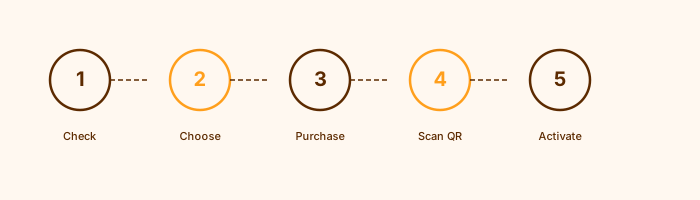
Activation Timeline
- Check Device Compatibility
Confirm your device supports eSIM. Go to Settings > General > About (iOS) or Settings > Connections > SIM Manager (Android). Look for an "Add eSIM" or "Add Mobile Plan" option. If absent, your device does not support eSIM. - Verify Carrier Unlock Status
Your device must be unlocked from your home carrier to use a third-party eSIM. Contact your UK carrier to confirm unlock status. Most UK carriers unlock devices after 30 days of contract completion. - Select and Purchase a Plan
Choose a plan based on destination, data needs, and validity period. Use our Pricing guide to compare options. Purchase directly from the carrier's website or app. - Receive Your QR Code
After purchase, you will receive a QR code by email or within the carrier's app. Do not share this QR code — it is a one-time-use credential. Screenshot it for offline access. - Install the eSIM Profile
On iOS: Settings > Mobile Data > Add eSIM > Use QR Code. On Android: Settings > Connections > SIM Manager > Add eSIM. Scan the QR code. The profile downloads in 30–120 seconds. - Label and Configure the Profile
Name the eSIM profile clearly (e.g., "Japan Trip 2025"). Set it as the default for data while keeping your home SIM as default for calls and SMS. - Test Before Departure
Enable the eSIM profile and verify it shows a carrier name. If possible, test data connectivity while still in the UK (some plans activate only upon arrival in the destination country). - Activate on Arrival
Upon landing, disable aeroplane mode. The eSIM should connect to a local network automatically. If not, go to Settings and manually select the eSIM network. Allow up to 5 minutes for initial registration.
Pre-Travel Preparation Checklist
- Device confirmed as eSIM-compatible
- Device confirmed as carrier-unlocked
- iOS/Android updated to latest version
- Plan purchased at least 48 hours before departure
- QR code saved as screenshot (offline access)
- Carrier's support contact saved
- eSIM profile installed and labelled
- Data settings configured (eSIM for data, home SIM for calls)
- Hotspot settings tested if tethering is required
- APN settings verified (if manual configuration needed)
- Backup connectivity option identified (e.g., hotel Wi-Fi)
- Carrier's refund policy understood in case of activation failure
Common Issues and Solutions
eSIM profile fails to download
Ensure you have a stable Wi-Fi connection during download. Disable VPN if active. Restart your device and try again. If the issue persists, contact the carrier — the QR code may have expired or been used on another device.
No network signal after activation
Toggle aeroplane mode off and on. Go to Settings and manually select the carrier network. Check that the eSIM is set as the active data SIM. Allow 5–10 minutes for network registration in a new country.
APN settings not configured automatically
Some carriers require manual APN entry. The carrier will provide APN details in their confirmation email. On iOS: Settings > Mobile Data > Mobile Data Network. On Android: Settings > Connections > Mobile Networks > Access Point Names.
Device shows "SIM not supported"
This typically indicates a carrier lock. Contact your UK carrier to request an unlock. Note that some budget devices do not support eSIM regardless of lock status.
eSIM profile disappeared after phone update
Major OS updates occasionally require eSIM profiles to be re-added. Contact the carrier with your order reference to obtain a new QR code. Note that some carriers charge for QR code re-issuance.
After Your Trip
Once your trip is complete, you can either retain the eSIM profile for future use (if the plan has remaining validity) or delete it from your device. To delete: Settings > Mobile Data > select the eSIM > Delete eSIM. Deletion is permanent — you cannot restore a deleted profile.